Node.js Path Module Explained: Complete Beginner Guide
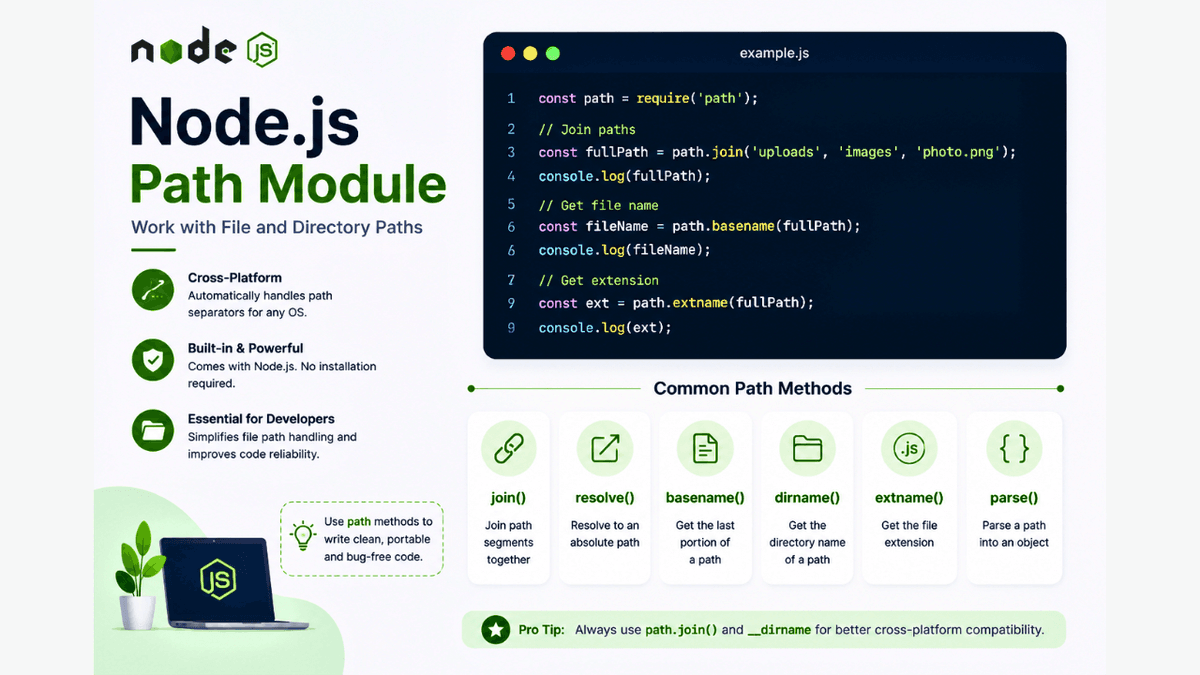
Learn how to use the Node.js path module to join paths, resolve absolute paths, get file names, extract extensions, and build cross-platform applications with practical examples.
Node.js Path Module Explained: Work with File and Directory Paths
When building Node.js applications, you'll often need to work with file and folder paths.
For example, you might need to locate an uploaded image, generate the correct path to a configuration file, or safely join multiple folder names together.
Hardcoding paths can cause problems across different operating systems because Windows, macOS, and Linux use different path separators.
This is where the Node.js Path module helps.
In this guide, you'll learn what the path module is, why it's important, and how to use its most useful methods with practical examples.
Prerequisites
Before reading this guide, make sure you've completed:
What Is the Path Module?
The Path ( path ) module is a built-in Node.js module that provides utilities for working with file and directory paths.
Because it's built into Node.js, no installation is required.
Import it like this:
const path = require("path");
Why Use the Path Module?
The path module helps you:
- Join paths safely
- Get file names
- Extract file extensions
- Find directory names
- Normalize paths
- Resolve absolute paths
These operations make your code more reliable and cross-platform.
Joining Paths
Instead of manually concatenating strings:
const filePath = "uploads/images/photo.png";
Use:
  const path = require("path");

const filePath = path.join(
  "uploads",
  "images",
  "photo.png"
);

console.log(filePath);
path.join() automatically uses the correct path separator for the current operating system.
Getting the File Name
Example:
  const path = require("path");

const fileName =
  path.basename(
    "/images/profile.png"
  );

console.log(fileName);
Output:
profile.png
Getting the File Extension
  const extension =
  path.extname(
    "profile.png"
  );

console.log(extension);
Output:
.png
This is useful when validating uploaded file types.
Getting the Directory Name
  const directory =
  path.dirname(
    "/uploads/images/profile.png"
  );

console.log(directory);
Output:
/uploads/images
Getting the Absolute Path
  const absolute =
  path.resolve("uploads");

console.log(absolute);
This returns the absolute path from the current working directory.
Parsing a Path
The parse() method returns useful information about a file.
  const details = path.parse(
  "/uploads/images/profile.png"
);

console.log(details);
Output:
  {
  root: "/",
  dir: "/uploads/images",
  base: "profile.png",
  ext: ".png",
  name: "profile"
}
Using __dirname
Node.js provides the special variable __dirname , which contains the directory of the current file.
Example:
console.log(__dirname);
You can combine it with path.join() :
  const path = require("path");

const imagePath = path.join(
  __dirname,
  "uploads",
  "profile.png"
);

console.log(imagePath);
This is the recommended way to reference files within your project.
Common Path Methods
| Method | Purpose |
|---|---|
join() | Join path segments |
resolve() | Create an absolute path |
basename() | Get the file name |
dirname() | Get the directory name |
extname() | Get the file extension |
parse() | Break a path into parts |
These are the methods you'll use most frequently.
Common Beginner Mistakes
Hardcoding Paths
Avoid:
  const pathName =
  "uploads/images/file.png";
Instead, use:
  path.join(
  "uploads",
  "images",
  "file.png"
);
Ignoring Cross-Platform Compatibility
Different operating systems use different path separators.
The path module handles these differences automatically.
Confusing basename() and dirname()
-
basename()returns the file name. -
dirname()returns the folder path.
Real-World Use Cases
The path module is commonly used for:
- File uploads
- Static file serving
- Image storage
- Configuration files
- Log file management
- PDF generation
- Report exports
Most backend applications use the path module regularly.
Best Practices
- Use
path.join()instead of string concatenation. - Combine
__dirnamewithpath.join()for local project files. - Validate file extensions before processing uploads.
- Keep file paths organized and predictable.
Practice Exercises
Build these small examples:
- File Path Generator
- Image Upload Path Builder
- File Extension Checker
- Directory Explorer
- Project Asset Manager
These exercises reinforce how paths are handled in Node.js.
Production Tip
Professional developers avoid hardcoded paths.
Using path.join() with __dirname ensures applications work consistently across Windows, macOS, and Linux without code changes.
Why the Path Module Matters
The path module simplifies file management and eliminates many platform-specific issues.
It's an essential tool when working with uploads, static assets, logs, templates, and configuration files.
Conclusion
The Node.js path module provides a safe and reliable way to work with file and directory paths.
By understanding its core methods and following best practices, you'll write cleaner, more portable, and production-ready backend applications.