Build a Static Website Server in Node.js
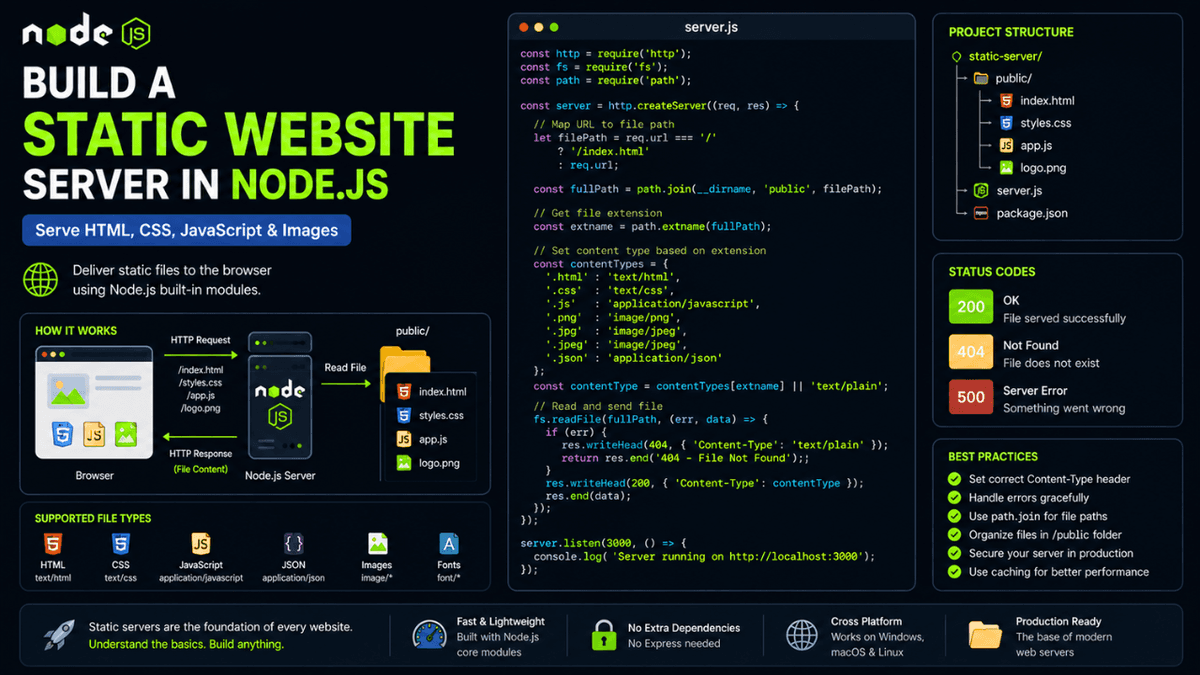
Learn how to build a static website server in Node.js using the HTTP and File System modules. Serve HTML, CSS, JavaScript, and images without Express.
Build a Static Website Server in Node.js: Serve HTML, CSS, and JavaScript Without Express
Every website you visit is serving static files.
HTML builds the structure.
CSS handles the styling.
JavaScript adds interactivity.
Images, fonts, icons, and videos complete the experience.
Before frameworks like Express automate this process, it's important to understand how Node.js serves these files manually because it helps you understand what actually happens behind the scenes.
After learning how file uploads work in the previous article, the next logical step is learning how servers deliver files back to users.
What is a Static Website?
A static website consists of files that are sent directly to the browser without server-side processing.
Examples include:
- Portfolio websites
- Documentation websites
- Landing pages
- Company websites
- Developer blogs
- Product showcase websites
Unlike APIs, static websites return files instead of JSON responses.
Project Structure
  static-server/
│
├── public/
│   ├── index.html
│   ├── styles.css
│   ├── app.js
│   └── logo.png
│
├── server.js
└── package.json
This folder structure is simple, scalable, and commonly used in backend applications.
Creating the HTTP Server
  const http = require("http");

const server = http.createServer((req, res) => {
  res.end("Server Running");
});

server.listen(3000, () => {
  console.log("Server running on port 3000");
});
Now let's serve an actual HTML page.
Serving HTML Files
  const fs = require("fs");

if (req.url === "/") {
  fs.readFile("./public/index.html", (err, data) => {
    res.writeHead(200, {
      "Content-Type": "text/html"
    });

    res.end(data);
  });
}
When a user visits:
http://localhost:3000
Node.js reads the file from disk and sends it back to the browser.
This is where understanding the File System Module ( fs ) becomes incredibly useful because every static server relies on file operations.
Serving CSS Files
  if (req.url === "/styles.css") {
  fs.readFile("./public/styles.css", (err, data) => {
    res.writeHead(200, {
      "Content-Type": "text/css"
    });

    res.end(data);
  });
}
Without the correct content type, browsers won't know how to interpret the file.
If you haven't explored response headers yet, understanding HTTP Headers in Node.js makes this behavior much easier to understand.
Serving JavaScript Files
  if (req.url === "/app.js") {
  fs.readFile("./public/app.js", (err, data) => {
    res.writeHead(200, {
      "Content-Type": "application/javascript"
    });

    res.end(data);
  });
}
The browser downloads and executes the file automatically.
Serving Images
  if (req.url === "/logo.png") {
  fs.readFile("./public/logo.png", (err, data) => {
    res.writeHead(200, {
      "Content-Type": "image/png"
    });

    res.end(data);
  });
}
Images, videos, and fonts are all served in a similar way.
Interestingly, the file upload server we built previously stores files on disk, while a static server retrieves those same files and delivers them back to users.
Understanding MIME Types
Every file type requires the correct MIME type.
| File Type | MIME Type |
|---|---|
| HTML | text/html |
| CSS | text/css |
| JavaScript | application/javascript |
| JSON | application/json |
| PNG | image/png |
| JPG | image/jpeg |
Incorrect MIME types can cause browsers to ignore files completely.
Creating Dynamic File Paths
Instead of creating hundreds of if statements, we can map URLs dynamically.
  const path = require("path");

const filePath = path.join(
  __dirname,
  "public",
  req.url === "/" ? "index.html" : req.url
);
The Path Module makes working with file locations much safer and more portable across operating systems.
Handling Missing Files
Always handle missing resources.
  if (err) {
  res.writeHead(404);

  return res.end("Page Not Found");
}
Returning proper status codes improves debugging and user experience.
Common Status Codes
| Status Code | Meaning |
|---|---|
| 200 | Success |
| 404 | File Not Found |
| 500 | Internal Server Error |
If you're unfamiliar with these responses, our article on HTTP Status Codes Explained covers when each code should be used.
Common Beginner Mistakes
Hardcoding File Paths
Bad:
"./public/index.html"
Better:
path.join(__dirname, "public", "index.html")
The Path Module prevents operating system compatibility issues.
Missing Content Types
Serving CSS as HTML:
Content-Type: text/html
will break styling completely.
Ignoring Errors
Always handle file reading failures gracefully.
Production servers should never crash because a single file is missing.
Real World Examples
Static file serving powers:
- Next.js asset delivery
- React production builds
- Documentation sites
- Company landing pages
- Blog platforms
- Image hosting systems
Even modern frameworks ultimately rely on the same underlying concepts.
What Comes Next?
Now that we understand how servers deliver files to browsers, we'll move into something much more interesting.
In the next article, we'll build a URL Shortener in Node.js , where we'll learn how to generate short links, map URLs, and redirect users efficiently.
Conclusion
Building a static website server helps you understand how browsers receive content from backend systems.
Although frameworks simplify this process, knowing how it works under the hood makes debugging easier and strengthens your understanding of web architecture.
Master static file serving and you'll better understand how modern frameworks like Express, Next.js, and Nginx handle requests behind the scenes.