Your First Node.js Program: Hello World Tutorial
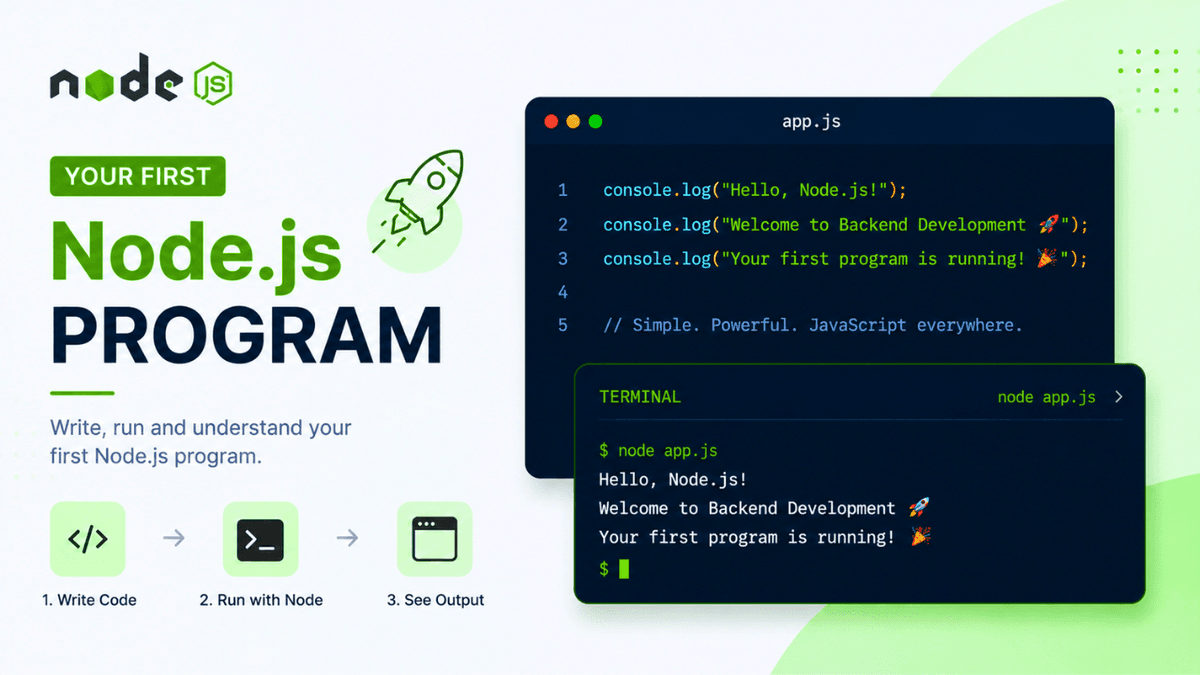
Learn how to write and run your first Node.js program. Create a Hello World application, understand console.log(), run JavaScript with Node.js, and start your backend development journey.
Your First Node.js Program: Build and Run a Hello World Application
After installing Node.js, the next step is writing and running your first program.
This simple project helps you understand how Node.js executes JavaScript outside the browser and introduces the basic workflow you'll use throughout your backend development journey.
By the end of this guide, you'll know how to create a Node.js file, execute it from the terminal, and understand what's happening behind the scenes.
Prerequisites
Before following this tutorial, make sure you've completed:
Your development environment should already have Node.js and npm installed.
What Will We Build?
We'll create a simple Node.js application that prints a message to the terminal.
Example output:
  Hello, Node.js!
Welcome to Backend Development 🚀
Although it's a small program, it introduces the core workflow used in every Node.js project.
Understanding How Node.js Runs JavaScript
Unlike browser JavaScript, Node.js executes JavaScript directly on your computer.
Workflow:
  Write JavaScript

↓

Save File

↓

Run with Node.js

↓

Output Appears in Terminal
There is no browser involved.
Step 1: Create a Project Folder
Create a new folder anywhere on your computer.
Example:
first-node-app
Open this folder in your favorite code editor.
Step 2: Open the Project in VS Code
Open Visual Studio Code.
Select:
  File

↓

Open Folder

↓

first-node-app
Your project is now ready.
Step 3: Create app.js
Inside your project folder, create a file named:
app.js
This file will contain your JavaScript code.
Step 4: Write Your First Program
Open app.js and add:
console.log("Hello, Node.js!");
Save the file.
This is your first Node.js program.
Understanding console.log()
The console.log() function prints information to the terminal.
Example:
  console.log("Learning Node.js");
console.log(100);
console.log(true);
Output:
  Learning Node.js
100
true
It's one of the most commonly used functions while developing and debugging applications.
Step 5: Open the Terminal
Inside VS Code, open the integrated terminal:
  Terminal

↓

New Terminal
Or use the shortcut:
Ctrl + `
Make sure you're inside your project folder.
Step 6: Run the Program
Execute the following command:
node app.js
Output:
Hello, Node.js!
Congratulations! You've successfully executed JavaScript using Node.js.
How the Command Works
Let's break it down:
node app.js
-
node→ Starts the Node.js runtime. -
app.js→ Specifies the JavaScript file to execute.
Node.js reads the file, executes every line, and displays the result in the terminal.
Adding More Output
Try updating your program:
  console.log("Welcome to Node.js!");
console.log("Learning Backend Development");
console.log("Today is my first Node.js program.");
Output:
  Welcome to Node.js!
Learning Backend Development
Today is my first Node.js program.
Each console.log() statement prints on a new line.
Working with Variables
You can also display variables.
Example:
  const language = "JavaScript";
const runtime = "Node.js";

console.log(language);
console.log(runtime);
Output:
  JavaScript
Node.js
This demonstrates that Node.js executes standard JavaScript code.
Performing Simple Calculations
Node.js can evaluate expressions.
Example:
  const a = 20;
const b = 10;

console.log(a + b);
console.log(a * b);
console.log(a - b);
console.log(a / b);
Output:
  30
200
10
2
This confirms that Node.js executes JavaScript just like a browser, but without a graphical interface.
Understanding the Project Structure
Your project currently looks like this:
  first-node-app

└── app.js
As your applications grow, you'll add more files and folders.
Common Beginner Mistakes
Forgetting to Save the File
If you don't save your changes before running the program, Node.js executes the previous version.
Always save before running.
Typing the Wrong File Name
Incorrect:
node App.js
Correct:
node app.js
File names are case-sensitive on many operating systems.
Running the Command Outside the Project Folder
If the terminal isn't inside your project directory, Node.js won't find your file.
Use:
cd first-node-app
before running the program.
Forgetting the .js Extension
Always create JavaScript files with the .js extension.
Practice Exercises
Try modifying your program to:
- print your name
- print your favorite programming language
- display today's date
- perform basic arithmetic
- print multiple messages
Practicing simple programs builds confidence before moving to larger projects.
Build Something
Practice by creating small console applications:
- Greeting App
- Age Calculator
- Temperature Converter
- Simple Calculator
- Random Number Generator
These projects reinforce the fundamentals of Node.js.
Production Tip
Professional developers use console.log() for quick debugging, but larger applications often rely on dedicated logging libraries for better monitoring and troubleshooting.
Learning how to run small programs correctly is the foundation for building APIs, command-line tools, and full-stack applications.
Why Your First Program Matters
Every experienced developer starts with a simple "Hello, World!" application.
It teaches the development workflow you'll repeat throughout your career:
- write code
- save changes
- run the application
- inspect the output
- improve the code
Mastering this cycle is the first step toward becoming a confident Node.js developer.
Conclusion
Creating your first Node.js program is an important milestone in your backend development journey.
Although the application is simple, it introduces the essential workflow of writing JavaScript, executing it with Node.js, and viewing the output in the terminal.
With this foundation in place, you're ready to explore modules, file handling, servers, and eventually build complete backend applications.